COMPLETE EXPERIENCIE SOLUTION
- Web Integration
- Classic Flow
- KYC Ecuador Flow
- KYC Ecuador + Document Capture Flow
- KYC Ecuador StartCompareFaces
- KYC Service Overview and Integration
- KYC Transaction Flow
- Single-use link
Web Integration
In today's digital age, ensuring the authenticity of user identities is paramount for online platforms, especially for services requiring a high level of security and trust. The Full Experience Integration offers a comprehensive solution by seamlessly incorporating identity validation processes directly into your web application. This guide introduces the concept of redirecting users to a dedicated web page for either ENROLL or VERIFY flows, providing a complete, secure, and user-friendly experience for identity verification.
Why Full Experience Integration?
Integrating the Full Experience for identity validation directly into your web application has several key benefits:
- Enhanced Security: By utilizing advanced biometric verification and document authentication, you significantly reduce the risk of identity fraud and enhance the overall security of your platform.
- Improved User Experience: Users appreciate a seamless and efficient process for identity verification. Redirecting to a dedicated web page simplifies the user journey, making it straightforward and hassle-free.
- Flexibility and Ease of Integration: Whether through GET or POST methods, redirecting users to a web page for identity verification offers flexibility in integration, allowing you to maintain the look and feel of your application while leveraging robust verification processes.
- Scalability: As your platform grows, the need for a reliable and scalable identity verification solution becomes crucial. The Full Experience Integration is designed to scale with your needs, ensuring consistent performance and reliability.
The ENROLL and VERIFY Flows
The Full Experience Integration encompasses two primary flows:
- ENROLL Flow: A comprehensive identity validation process that includes liveness detection, document scanning and authentication, OCR for data extraction, biometric extraction and comparison, and secure data association and storage. This flow establishes a verified biometric profile linked to the user's identity document.
- VERIFY Flow: A streamlined process that verifies an individual's identity by comparing live biometric data against the previously created biometric profile during the ENROLL process. This flow ensures that the person accessing the service is the same individual who initially enrolled.
Implementing the Integration
Integrating these flows into your web application involves redirecting users to a specific URL for either the ENROLL or VERIFY process. This redirection can be achieved using GET or POST methods, depending on your application's requirements and the specific parameters of the identity verification process. The URL includes all necessary parameters to initiate the verification process, such as API keys, project names, product numbers, and any additional custom parameters required for the transaction.
This guide aims to provide you with the knowledge and tools needed to implement the Full Experience Integration for identity verification within your web application. By following the outlined steps and understanding the importance of each flow, you can enhance the security and user experience of your platform, ensuring a trustworthy and efficient identity verification process.
Classic Flow
Integrating the Full Experience for identity verification into your web application involves redirecting users to a dedicated web page where they can complete the ENROLL or VERIFY process. This tutorial will guide you through the steps to implement these flows, ensuring a seamless integration that enhances user experience and security.
Requirements and Compatibility
Before you begin, ensure you have the following:
- Access to the base URL for the identity verification service.
- An API key and project name provided by the service provider.
- Knowledge of the product number associated with the service you intend to use.
- Familiarity with GET and POST HTTP methods.
Preparing the Redirection URLs
Based on the flow you wish to implement (ENROLL or VERIFY), prepare the URL to which users will be redirected. The URL structure differs slightly between the two flows:
ENROLL
GET Method: Construct the URL with all required parameters appended as query strings.
POST Method: If using POST, you'll need to set up a form or a web request in your application that submits to the URL https://your-base-url/validar-persona/ with the parameters included in the body of the request.
<form action="https://your-base-url/validar-persona/" method="post" target="_blank">
<input type="hidden" name="callback" value="YOUR_CALLBACK_URL" />
<input type="hidden" name="key" value="YOUR_API_KEY" />
<input type="hidden" name="projectName" value="YOUR_PROJECT_NAME" />
<input type="hidden" name="product" value="YOUR_PRODUCT_NUMBER" />
<input type="hidden" name="Parameters" value='YOUR_CUSTOM_PARAMETERS' />
<input type="hidden" name="riskId" value="YOUR_RISK_ID" />
<button type="submit">Start ENROLL Process</button>
</form>
Replace placeholders like YOUR_CALLBACK_URL, YOUR_API_KEY, etc., with actual values provided by the identity verification service. The Parameters field should contain a JSON string with any additional information you wish to pass.
VERIFY
GET Method: Similar to ENROLL, but with parameters suited for verification.
POST Method: Submit to https://your-base-url/verificar-persona/ with verification parameters in the request body.
<form action="https://your-base-url/verificar-persona/" method="post" target="_blank">
<input type="hidden" name="callback" value="YOUR_CALLBACK_URL" />
<input type="hidden" name="key" value="YOUR_API_KEY" />
<input type="hidden" name="projectName" value="YOUR_PROJECT_NAME" />
<input type="hidden" name="documentType" value="DOCUMENT_TYPE" />
<input type="hidden" name="identificationNumber" value="IDENTIFICATION_NUMBER" />
<input type="hidden" name="product" value="YOUR_PRODUCT_NUMBER" />
<input type="hidden" name="riskId" value="YOUR_RISK_ID" />
<input type="hidden" name="searchOneToMany" value="true_or_false" />
<input type="hidden" name="getGeolocationOption" value="GEOLOCATION_OPTION" />
<input type="hidden" name="hideTips" value="true_or_false" />
<button type="submit">Start VERIFY Process</button>
</form>
Again, ensure that you replace placeholders with actual values relevant to your project and the identity verification service. The searchOneToMany, getGeolocationOption, and hideTips fields are optional and should be included based on your specific requirements.
Redirecting Users
Implement the logic in your web application to redirect users to the prepared URL when they need to complete the ENROLL or VERIFY process. This can be a direct link, a button click event, or an automatic redirection based on application logic.
Handling the Callback
The callback parameter in the URL is crucial as it defines where the user is redirected after completing the verification process. Ensure your application is prepared to handle this callback URL:
- Capture query parameters or POST data returned to the callback URL.
- Process the verification results according to your application's logic (e.g., updating user status, displaying a success message).
Additional Tips
- Custom Parameters: Utilize the
Parametersfield in the ENROLL flow to pass any additional information specific to the transaction or user. This field must be in JSON format. - Risk Management: The
riskIdparameter allows you to specify the risk level of the transaction. Use this to adjust the verification process according to your security needs. - User Experience: Consider the user journey through the verification process. Provide clear instructions and support to ensure a smooth experience.
By following these steps, you can successfully integrate the Full Experience for identity verification into your web application, enhancing security and user trust in your platform.
KYC Ecuador Flow
Integration Guide for Identity Validation Flow for Ecuador
This guide offers a detailed approach to integrating a specialized identity validation flow tailored for Ecuadorian users. This process stands out by authenticating users through real-time validation of their facial features, comparing them against the official data provided by the Civilian Registry of Ecuador. By adhering to a proven framework used in classic verification flows, this integration is adapted to meet the unique requirements of users from Ecuador, ensuring a secure and efficient verification process.
Overview
The identity validation flow for Ecuador leverages advanced facial recognition technology to compare a user's live-captured photograph against identity data from the Civilian Registry of Ecuador. This comparison ensures that the person attempting to verify their identity matches the official records, thereby enhancing security and trust in digital platforms.
Key Steps for Integration
-
User Consent and Instruction: Begin by informing users about the process and obtaining their consent. Clearly explain the need for a facial photograph and how it will be used for verification purposes. Ensure users understand the importance of clear lighting and a neutral background for the photograph.
-
Capture and Submission: Implement a user-friendly interface that guides users through the photograph capture process. This interface should include real-time feedback to help users position their face correctly within the designated area. Once the photograph is captured, it, along with any necessary identification information (e.g., unique identification number), is submitted for verification.
-
Real-Time Verification: Upon submission, the system processes the photograph and identification information, comparing them against the data provided by the Civilian Registry of Ecuador. This step utilizes facial recognition algorithms to ensure a match between the live-captured photograph and the official records.
-
Verification Outcome: The result of the verification process is communicated back to the user and the platform in real-time. A successful verification confirms the user's identity matches the official records, while any discrepancies are flagged for further review.
Implementation Considerations
-
Privacy and Data Protection: Ensure the process complies with local and international data protection regulations. User data, especially biometric information, should be handled with the utmost care, ensuring privacy and security.
-
User Experience: Design the verification process to be as intuitive and straightforward as possible. Minimize user effort and provide clear instructions and feedback throughout the process.
-
Technical Integration: Depending on your platform's architecture, choose the appropriate method (GET or POST) for submitting the verification request. Ensure your system is capable of handling the response, whether it's a direct callback or a JSON object containing the verification outcome.
-
Testing and Quality Assurance: Before launching the integration, conduct thorough testing to ensure accuracy in the verification process and a smooth user experience. Consider various user scenarios and edge cases to refine the process.
By following this guide, you can integrate a robust and efficient identity validation flow into your platform, specifically designed for Ecuadorian users. This process not only enhances security by leveraging real-time data from the Civilian Registry of Ecuador but also offers a seamless and user-friendly experience, building trust and confidence among your user base.
Step 1: Preparing for Integration
Before initiating the integration process, ensure you have the following:
- Access to the base URL for the identity verification service.
- An API key and project name provided by the service provider.
- Understanding of the specific parameters required for the Ecuadorian identity validation flow.
Step 2: Constructing the Request
The identity validation process can be initiated using either GET or POST methods, depending on your application's architecture and preferences.
For the GET Method:
Construct a URL with the required parameters appended as query strings. The basic structure is as follows:
URL_Base/validar-rostro-persona?callback=URL_CALLBACK&key=API_KEY&projectName=PROJECT_NAME&product=PRODUCT&Parameters=PARAMETERS&riskId=RISK_ID
For the POST Method:
If you prefer using POST, your application will need to send a request to URL_Base/validar-rostro-persona/ with the parameters included in the body of the request.
Parameters:
callback: The URL to which the user will be redirected after the verification process is completed.key: The API key assigned to your project.projectName: The name of your project.product: The product number for the transaction.Parameters: Additional custom parameters in JSON format, associated with the transaction. This is optional.riskId: The transaction's risk level identifier. If not specified, a default level is assumed.
Step 3: Handling the User Experience
-
User Consent: Inform the user about the minimum conditions required for capturing the facial photograph with Liveness detection. The browser will request permission to access the device's camera and location.
-
Capture Process: After granting permission, the user will be prompted to capture their photograph by clicking on "capturar fotografía". They must keep their face within the on-screen oval until the internal clock completes.
-
Data Entry: On the Identification Data screen, users must enter their unique identification number and individual fingerprint code to proceed with the identity validation by pressing "Continuar".
-
Completion: Upon completion, users will see a summary screen indicating that the transaction has finished successfully.
Step 4: Receiving the Response
After the user completes the process, your application will receive a JSON object at the specified callback URL. The JSON structure includes the transaction's outcome and relevant data, such as the id, codeId, and ThresHoldCompareFaces.
Step 5: Retrieving Transaction Results
The Validation method is a crucial part of the identity verification process, allowing you to retrieve detailed information about the transaction and the outcome of the validation. This method is particularly useful for post-verification steps, such as auditing, compliance checks, or further user verification processes. Below, we detail how to use the Validation method with a curl command, which is designed to fetch the results of a specific transaction using a GET request.
Overview
To retrieve the results of an identity verification transaction, you will need the codeId that was provided in the callback after the verification process. This codeId serves as a unique identifier for the transaction, enabling you to query the verification results.
CURL Command Structure
The curl command to retrieve the transaction results is structured as follows:
curl -X GET "{URL_Base}/api/{ProjectName}/Validation/{id}?returnImages=false" \
-H "accept: application/json" \
-H "apiKey: your_api_key" \
-H "returnDocuments: true" \
-H "returnVideoLiveness: false"
Parameters Explained
-
{URL_Base}: The base URL of the identity verification service. This should be replaced with the actual URL provided to you.
-
{ProjectName}: The name of your project as registered with the identity verification service. Replace
{ProjectName}with your specific project name. -
{id}: The unique identifier (
codeId) for the transaction you wish to retrieve. This ID is typically provided in the callback after the verification process. -
returnImages (Query Parameter): Specifies whether to include images in the response. Setting this to
falseexcludes images from the response, whiletrueincludes them.
Headers
-
accept: Indicates the expected media type of the response, which is
application/jsonfor JSON-formatted data. -
apiKey: Your API key for authentication with the identity verification service. Replace
your_api_keywith the actual API key assigned to your project. -
returnDocuments: A header that determines whether document data should be included in the response. Setting this to
trueincludes document data, whilefalseexcludes it. -
returnVideoLiveness: Indicates whether the response should contain video data from the liveness verification process.
trueincludes video data, andfalseexcludes it.
Usage Tips
-
Ensure all placeholders in the
curlcommand are replaced with actual values specific to your project and the transaction you're querying. -
Execute the
curlcommand in a terminal or command-line interface. The server's response will include the transaction details and validation results, according to the parameters you've set. -
Carefully process the JSON response to extract and utilize the verification information as needed in your application or for compliance purposes.
By following these guidelines and using the corrected URL structure and parameters, you can effectively retrieve detailed information about identity verification transactions, enhancing your application's security and user management processes .
KYC Ecuador + Document Capture Flow
Integration Guide for Identity Validation Flow for Ecuador + Document Capture
This guide outlines the integration of a specialized identity validation flow designed for Ecuadorian users. This enhanced process is distinguished by its ability to authenticate users in real-time by capturing their facial features and an image of their identification document. Unlike traditional verification flows that may compare document information against official records, this streamlined approach focuses solely on capturing the document's image without validating its data. This adaptation ensures a secure and efficient verification process, tailored to meet the unique needs of users from Ecuador, while simplifying the steps involved in identity verification.
Overview
The identity validation flow for Ecuador leverages advanced facial recognition technology to compare a user's live-captured photograph against identity data from the Civilian Registry of Ecuador. This comparison ensures that the person attempting to verify their identity matches the official records, thereby enhancing security and trust in digital platforms.
Key Steps for Integration
-
User Consent and Instruction: Begin by informing users about the process and obtaining their consent. Clearly explain the need for a facial photograph and how it will be used for verification purposes. Ensure users understand the importance of clear lighting and a neutral background for the photograph.
-
Capture and Submission: Implement a user-friendly interface that guides users through the photograph capture process. This interface should include real-time feedback to help users position their face correctly within the designated area. Once the photograph is captured, it, along with any necessary identification information (e.g., unique identification number), is submitted for verification.
-
Real-Time Verification: Upon submission, the system processes the photograph and identification information, comparing them against the data provided by the Civilian Registry of Ecuador. This step utilizes facial recognition algorithms to ensure a match between the live-captured photograph and the official records.
-
Verification Outcome: The result of the verification process is communicated back to the user and the platform in real-time. A successful verification confirms the user's identity matches the official records, while any discrepancies are flagged for further review.
Implementation Considerations
-
Privacy and Data Protection: Ensure the process complies with local and international data protection regulations. User data, especially biometric information, should be handled with the utmost care, ensuring privacy and security.
-
User Experience: Design the verification process to be as intuitive and straightforward as possible. Minimize user effort and provide clear instructions and feedback throughout the process.
-
Technical Integration: Depending on your platform's architecture, choose the appropriate method (GET or POST) for submitting the verification request. Ensure your system is capable of handling the response, whether it's a direct callback or a JSON object containing the verification outcome.
-
Testing and Quality Assurance: Before launching the integration, conduct thorough testing to ensure accuracy in the verification process and a smooth user experience. Consider various user scenarios and edge cases to refine the process.
By following this guide, you can integrate a robust and efficient identity validation flow into your platform, specifically designed for Ecuadorian users. This process not only enhances security by leveraging real-time data from the Civilian Registry of Ecuador but also offers a seamless and user-friendly experience, building trust and confidence among your user base.
Step 1: Preparing for Integration
Before initiating the integration process, ensure you have the following:
- Access to the base URL for the identity verification service.
- An API key and project name provided by the service provider.
- Understanding of the specific parameters required for the Ecuadorian identity validation flow.
Step 2: Constructing the Request
The identity validation process can be initiated using either GET or POST methods, depending on your application's architecture and preferences.
For the GET Method:
Construct a URL with the required parameters appended as query strings. The basic structure is as follows:
URL_Base/validar-rostro-documento-persona?callback=URL_CALLBACK&key=API_KEY&projectName=PROJECT_NAME&product=PRODUCT&Parameters=PARAMETERS&riskId=RISK_ID
For the POST Method:
If you prefer using POST, your application will need to send a request to URL_Base/validar-rostro-persona/ with the parameters included in the body of the request.
Parameters:
callback: The URL to which the user will be redirected after the verification process is completed.key: The API key assigned to your project.projectName: The name of your project.product: The product number for the transaction.Parameters: Additional custom parameters in JSON format, associated with the transaction. This is optional.riskId: The transaction's risk level identifier. If not specified, a default level is assumed.
Step 3: Handling the User Experience
-
User Consent: Inform the user about the minimum conditions required for capturing the facial photograph with Liveness detection. The browser will request permission to access the device's camera and location.
-
Capture Process: After granting permission, the user will be prompted to capture their photograph by clicking on "capturar fotografía". They must keep their face within the on-screen oval until the internal clock completes.
-
Data Entry: On the Identification Data screen, users must enter their unique identification number and individual fingerprint code to proceed with the identity validation by pressing "Continuar".
-
Completion: Upon completion, users will see a summary screen indicating that the transaction has finished successfully.
Step 4: Receiving the Response
After the user completes the process, your application will receive a JSON object at the specified callback URL. The JSON structure includes the transaction's outcome and relevant data, such as the id, codeId, and ThresHoldCompareFaces.
Step 5: Retrieving Transaction Results
The Validation method is a crucial part of the identity verification process, allowing you to retrieve detailed information about the transaction and the outcome of the validation. This method is particularly useful for post-verification steps, such as auditing, compliance checks, or further user verification processes. Below, we detail how to use the Validation method with a curl command, which is designed to fetch the results of a specific transaction using a GET request.
Overview
To retrieve the results of an identity verification transaction, you will need the codeId that was provided in the callback after the verification process. This codeId serves as a unique identifier for the transaction, enabling you to query the verification results.
CURL Command Structure
The curl command to retrieve the transaction results is structured as follows:
curl -X GET "{URL_Base}/api/{ProjectName}/Validation/{id}?returnImages=false" \
-H "accept: application/json" \
-H "apiKey: your_api_key" \
-H "returnDocuments: true" \
-H "returnVideoLiveness: false"
Parameters Explained
-
{URL_Base}: The base URL of the identity verification service. This should be replaced with the actual URL provided to you.
-
{ProjectName}: The name of your project as registered with the identity verification service. Replace
{ProjectName}with your specific project name. -
{id}: The unique identifier (
codeId) for the transaction you wish to retrieve. This ID is typically provided in the callback after the verification process. -
returnImages (Query Parameter): Specifies whether to include images in the response. Setting this to
falseexcludes images from the response, whiletrueincludes them.
Headers
-
accept: Indicates the expected media type of the response, which is
application/jsonfor JSON-formatted data. -
apiKey: Your API key for authentication with the identity verification service. Replace
your_api_keywith the actual API key assigned to your project. -
returnDocuments: A header that determines whether document data should be included in the response. Setting this to
trueincludes document data, whilefalseexcludes it. -
returnVideoLiveness: Indicates whether the response should contain video data from the liveness verification process.
trueincludes video data, andfalseexcludes it.
Usage Tips
-
Ensure all placeholders in the
curlcommand are replaced with actual values specific to your project and the transaction you're querying. -
Execute the
curlcommand in a terminal or command-line interface. The server's response will include the transaction details and validation results, according to the parameters you've set. -
Carefully process the JSON response to extract and utilize the verification information as needed in your application or for compliance purposes.
By following these guidelines and using the corrected URL structure and parameters, you can effectively retrieve detailed information about identity verification transactions, enhancing your application's security and user management processes.
Signing Documents
In case require to sign documents with a KYC flow :
KYC Ecuador StartCompareFaces
Identity Validation Flow Integration Guide for Ecuador StarCompareFaces Routine
This guide offers a detailed approach to integrating a specialized identity validation flow tailored for Ecuadorian users. This process stands out by authenticating users through real-time validation of their facial features, comparing them against the official data provided by the Civilian Registry of Ecuador. By adhering to a proven framework used in classic verification flows, this integration is adapted to meet the unique requirements of users from Ecuador, ensuring a secure and efficient verification process.
Overview
The identity validation flow for Ecuador leverages advanced facial recognition technology to compare a user's live-captured photograph against identity data from the Civilian Registry of Ecuador. This comparison ensures that the person attempting to verify their identity matches the official records, thereby enhancing security and trust in digital platforms.
Key Steps for Integration
-
User Consent and Instruction: Begin by informing users about the process and obtaining their consent. Clearly explain the need for a facial photograph and how it will be used for verification purposes. Ensure users understand the importance of clear lighting and a neutral background for the photograph.
-
Capture and Submission: Implement a user-friendly interface that guides users through the photograph capture process. This interface should include real-time feedback to help users position their face correctly within the designated area. Once the photograph is captured, it, along with any necessary identification information (e.g., unique identification number), is submitted for verification.
-
Real-Time Verification: Upon submission, the system processes the photograph and identification information, comparing them against the data provided by the Civilian Registry of Ecuador. This step utilizes facial recognition algorithms to ensure a match between the live-captured photograph and the official records.
-
Verification Outcome: The result of the verification process is communicated back to the user and the platform in real-time. A successful verification confirms the user's identity matches the official records, while any discrepancies are flagged for further review.
Implementation Considerations
-
Privacy and Data Protection: Ensure the process complies with local and international data protection regulations. User data, especially biometric information, should be handled with the utmost care, ensuring privacy and security.
-
User Experience: Design the verification process to be as intuitive and straightforward as possible. Minimize user effort and provide clear instructions and feedback throughout the process.
-
Technical Integration: Depending on your platform's architecture, choose the appropriate method (GET or POST) for submitting the verification request. Ensure your system is capable of handling the response, whether it's a direct callback or a JSON object containing the verification outcome.
-
Testing and Quality Assurance: Before launching the integration, conduct thorough testing to ensure accuracy in the verification process and a smooth user experience. Consider various user scenarios and edge cases to refine the process.
By following this guide, you can integrate a robust and efficient identity validation flow into your platform, specifically designed for Ecuadorian users. This process not only enhances security by leveraging real-time data from the Civilian Registry of Ecuador but also offers a seamless and user-friendly experience, building trust and confidence among your user base.
Step 1: Preparing for Integration
Before initiating the integration process, ensure you have the following:
- Access to the base URL for the identity verification service.
- An API key and project name provided by the service provider.
- Understanding of the specific parameters required for the Ecuadorian identity validation flow.
CURL Command Structure
The curl command to retrieve the transaction results is structured as follows:
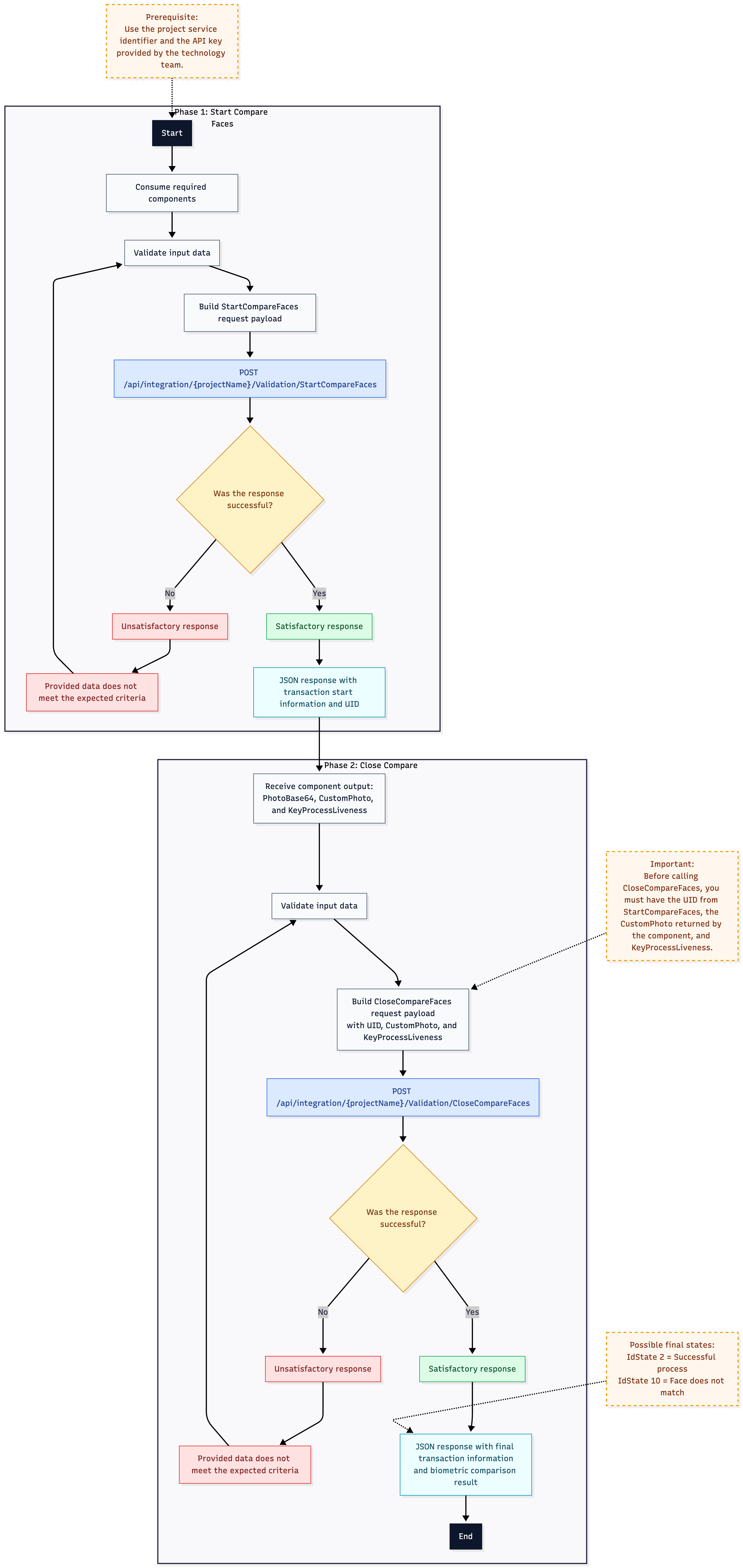
For the facial validation of the StarCompare Faces routine, we use the StarCompare Faces service for creating the UID. This service will request the customer's photograph for validation, extracted from the Ecuadorian registry, along with data such as fingerprint code, NUIP, Documentype (3 for Ecuadorian ID), full name, and digital signature photograph in case we are the ones making the call to the Ecuadorian civil registry. We need that in the request, only the document number and fingerprint code are provided. If no photo is sent, our system will make a call to the civil registry to extract this information from the data obtained.
curl --location '{URL_Base}/api/Integration/{ProjectName}/Validation/StartCompareFaces' \
--header 'apiKey: your_api_key' \
--header 'projectName: your_project_name' \
--header 'Content-Type: application/json' \
--data '{
"ProductId": your_productid,
"CustomerServicePhoto": base64 photo by ecuador registry,
"SignaturePhoto": base64 photo signature for ecuador registry,
"DactilarCode": customer's fingerprint code,
"IdentificationNumber": customer document number,
"Name": client's full name,
"DocumentType": type of document (3 For Ecuadorian cedula)
}'
Parameters Explained
-
{URL_Base}: The base URL of the identity verification service. This should be replaced with the actual URL provided to you.
-
{ProjectName}: The name of your project as registered with the identity verification service. Replace
{ProjectName}with your specific project name.
Code Response Description
200: "UID" JSON formatted object with transaction information.
400: The provided data does not correspond to the expected criteria.
404: The specified product code and/or project does not exist.
500: An error has occurred, validate the delivered ID number for more details.
Step 2: Constructing the Request
The identity validation process can be initiated by using the GET methods .
For the GET Method:
Construct a URL with the required parameters appended as query strings. The basic structure is as follows:
URL_Base/compare-faces?callback=https://www.google.com/&uid=UID
Parameters:
callback: The URL to which the user will be redirected after the verification process is completed.uid: unique identifier, assigned to each user for facial validation of the transaction created to be validated.
Step 3: Handling the User Experience
-
User Consent: Inform the user about the minimum conditions required for capturing the facial photograph with Liveness detection. The browser will request permission to access the device's camera and location.
-
Capture Process: After granting permission, the user will be prompted to capture their photograph by clicking on "capturar fotografía". They must keep their face within the on-screen oval until the internal clock completes.
-
Data Entry: On the Identification Data screen, users must enter their unique identification number and individual fingerprint code to proceed with the identity validation by pressing "Continuar".
-
Completion: Upon completion, users will see a summary screen indicating that the transaction has finished successfully.
Step 4: Receiving the Response
After the user completes the process, your application will receive a JSON object at the specified callback URL. The JSON structure includes the transaction's outcome and relevant data, such as the id, codeId, and ThresHoldCompareFaces.
Step 5: Retrieving Transaction Results
The Validation method is a crucial part of the identity verification process, allowing you to retrieve detailed information about the transaction and the outcome of the validation. This method is particularly useful for post-verification steps, such as auditing, compliance checks, or further user verification processes. Below, we detail how to use the Validation method with a curl command, which is designed to fetch the results of a specific transaction using a GET request.
Overview
To retrieve the results of an identity verification transaction, you will need the codeId that was provided in the callback after the verification process. This codeId serves as a unique identifier for the transaction, enabling you to query the verification results.
CURL Command Structure
The curl command to retrieve the transaction results is structured as follows:
curl -X GET "{URL_Base}/api/{ProjectName}/Validation/{id}?returnImages=false" \
-H "accept: application/json" \
-H "apiKey: your_api_key" \
-H "returnDocuments: true" \
-H "returnVideoLiveness: false"
Parameters Explained
-
{URL_Base}: The base URL of the identity verification service. This should be replaced with the actual URL provided to you.
-
{ProjectName}: The name of your project as registered with the identity verification service. Replace
{ProjectName}with your specific project name. -
{id}: The unique identifier (
codeId) for the transaction you wish to retrieve. This ID is typically provided in the callback after the verification process. -
returnImages (Query Parameter): Specifies whether to include images in the response. Setting this to
falseexcludes images from the response, whiletrueincludes them.
Headers
-
accept: Indicates the expected media type of the response, which is
application/jsonfor JSON-formatted data. -
apiKey: Your API key for authentication with the identity verification service. Replace
your_api_keywith the actual API key assigned to your project. -
returnDocuments: A header that determines whether document data should be included in the response. Setting this to
trueincludes document data, whilefalseexcludes it. -
returnVideoLiveness: Indicates whether the response should contain video data from the liveness verification process.
trueincludes video data, andfalseexcludes it.
Usage Tips
-
Ensure all placeholders in the
curlcommand are replaced with actual values specific to your project and the transaction you're querying. -
Execute the
curlcommand in a terminal or command-line interface. The server's response will include the transaction details and validation results, according to the parameters you've set. -
Carefully process the JSON response to extract and utilize the verification information as needed in your application or for compliance purposes.
By following these guidelines and using the corrected URL structure and parameters, you can effectively retrieve detailed information about identity verification transactions, enhancing your application's security and user management processes.
Routine Flow Chart
KYC Service Overview and Integration
Login Service
POST https://api-fintecheart.ado-tech.com/api/v1/auth/login
Parameters
Headers
x-accountid: Account id
Body structure
{
    "username": "username",
    "password": "password"
}
Response structure
{
    "success": true,
    "message": "Sign in successfully",
    "StatusCode": 200,
    "code": "Sign in successfully",
    "data": {
        "access_token": "eyJhbGciOiJSUzI1NiIsInR5cCIgOiAiS",
        "expires_in": 18000,
        "refresh_expires_in": 1800,
        "refresh_token": "eyJhbGciOiJIUzI1NiIsInR5cCIgOiAiSldU",
        "token_type": "Bearer",
        "not-before-policy": 0,
        "session_state": "131967cb-6a34-4b63-bcd6-df52dff84cd1",
        "scope": "email openid profile"
    }
}
Create transaction url
POST https://api-fintecheart.ado-tech.com/api/v1/flowmanager/flowrequest/create
This step will require the bearer token got in the login request as authorization parameter
Parameters
headers
x-accountid: Account id
body structure
{
    "documentType": "1",
    "documentNumber": "1234097206",
    "flowType": "1", // flowtype for KYC is 1
    "riskAmount": 123,
    "callBackUrl": "https://www.google.com"
}
Possible documentType values
WebHook for data transfering
There must be a login service for authentication and a push service to transfer the data.
Login
Parameters
The data must be received as a x-www-form-urlencoded
client_idclient_secretgrant_type:authentication type
Response structure
{
    "access_token": "eyJhbGciOiJSUzI1NiIIiA6ICJ6eFB3...",
    "expires_in": 300,
    "refresh_expires_in": 0,
    "token_type": "Bearer",
    "not-before-policy": 0,
    "scope": "email profile"
}
Push
Parameters
This is the JSON structure with the transaction data sent by the platform
{
    "Uid": "hba7gasd-785c-410e-80a4-27cb82215956",
    "key": "jdfys9d8y7fs87dyfs8dhjd",
    "StartingDate": "2023-09-07T10:55:26.603",
    "CreationDate": "2023-09-07T10:55:47.99",
    "CreationIP": "156.09.97.2",
    "DocumentType": 1,
    "IdNumber": "1238657888",
    "FirstName": "Nombre",
    "SecondName": "Nombre",
    "FirstSurname": "Apellido",
    "SecondSurname": "Apellido",
    "Gender": "G" // M or F
    "BirthDate": "2002-08-30T00:00:00",
    "PlaceBirth": place of birth,
    "ExpeditionCity": null,
    "ExpeditionDepartment": null,
    "BirthCity": null,
    "BirthDepartment": null,
    "TransactionType": 1,
    "TransactionTypeName": "Enroll",
    "IssueDate": "2020-09-03T00:00:00",
    "TransactionId": "125",
    "ProductId": "1",
    "ComparationFacesSuccesful": false,
    "FaceFound": false,
    "FaceDocumentFrontFound": false,
    "BarcodeFound": false,
    "ResultComparationFaces": 0.0,
    "ComparationFacesAproved": false,
    "Extras": {
        "IdState": "4",
        "StateName": "State description"
    },
    "NumberPhone": null,
    "CodFingerprint": null,
    "ResultQRCode": null,
    "DactilarCode": null,
    "ReponseControlList": null,
    "Images": [],
    "SignedDocuments": [],
    "Scores": [
        {
            "Id": 4,
            "UserName": null,
            "StateName": "State description",
            "StartingDate": "0001-01-01T00:00:00",
            "Observation": null
        }
    ],
    "Response_ANI": null,
    "Parameters": null
}
KYC Transaction Flow
Before transaction starts
Before starting each transaction, it is necessary to consume the FindByNumberIdSuccess service to verify the enrollment of a document number. This service is crucial because it allows us to define the flow to follow in order to verify the person's identity. In this process, the FindByNumberIdSuccess service searches for information related to a specific document number, confirming whether the person associated with that document is properly enrolled or not.
/api/{projectName}/FindByNumberIdSuccess
Parameters
projectName: The assigned project nameapiKey: The key assigned to the projectidentification: The client's identification numberdocType: Type of document to be queriedreturnImages: Determine if the images from the transaction will be returnedenrol: Default value : falseAuthorization: OAuth validation token
Responses
200 - Successful query
{
  "Uid": "string",
  "StartingDate": "2024-10-08T19:17:13.860Z",
  "CreationDate": "2024-10-08T19:17:13.860Z",
  "CreationIP": "string",
  "DocumentType": 0,
  "IdNumber": "string",
  "FirstName": "string",
  "SecondName": "string",
  "FirstSurname": "string",
  "SecondSurname": "string",
  "Gender": "string",
  "BirthDate": "2024-10-08T19:17:13.860Z",
  "Street": "string",
  "CedulateCondition": "string",
  "Spouse": "string",
  "Home": "string",
  "MaritalStatus": "string",
  "DateOfIdentification": "2024-10-08T19:17:13.860Z",
  "DateOfDeath": "2024-10-08T19:17:13.860Z",
  "MarriageDate": "2024-10-08T19:17:13.860Z",
  "Instruction": "string",
  "PlaceBirth": "string",
  "Nationality": "string",
  "MotherName": "string",
  "FatherName": "string",
  "HouseNumber": "string",
  "Profession": "string",
  "ExpeditionCity": "string",
  "ExpeditionDepartment": "string",
  "BirthCity": "string",
  "BirthDepartment": "string",
  "TransactionType": 0,
  "TransactionTypeName": "string",
  "IssueDate": "string",
  "BarcodeText": "string",
  "OcrTextSideOne": "string",
  "OcrTextSideTwo": "string",
  "SideOneWrongAttempts": 0,
  "SideTwoWrongAttempts": 0,
  "FoundOnAdoAlert": true,
  "AdoProjectId": "string",
  "TransactionId": "string",
  "ProductId": "string",
  "ComparationFacesSuccesful": true,
  "FaceFound": true,
  "FaceDocumentFrontFound": true,
  "BarcodeFound": true,
  "ResultComparationFaces": 0,
  "ResultCompareDocumentFaces": 0,
  "ComparationFacesAproved": true,
  "ThresholdCompareDocumentFaces": 0,
  "CompareFacesDocumentResult": "string",
  "Extras": {
    "additionalProp1": "string",
    "additionalProp2": "string",
    "additionalProp3": "string"
  },
  "NumberPhone": "string",
  "CodFingerprint": "string",
  "ResultQRCode": "string",
  "DactilarCode": "string",
  "ReponseControlList": "string",
  "Latitude": "string",
  "Longitude": "string",
  "Images": [
    {
      "Id": 0,
      "ImageTypeId": 0,
      "ImageTypeName": "string",
      "Image": "string",
      "DownloadCode": "string"
    }
  ],
  "SignedDocuments": [
    "string"
  ],
  "Scores": [
    {
      "Id": 0,
      "UserName": "string",
      "StateName": "string",
      "CausalRejectionName": "string",
      "StartingDate": "2024-10-08T19:17:13.860Z",
      "Observation": "string"
    }
  ],
  "Response_ANI": {
    "Niup": "string",
    "FirstSurname": "string",
    "Particle": "string",
    "SecondSurname": "string",
    "FirstName": "string",
    "SecondName": "string",
    "ExpeditionMunicipality": "string",
    "ExpeditionDepartment": "string",
    "ExpeditionDate": "string",
    "CedulaState": "string"
  },
  "Parameters": "string",
  "StateSignatureDocument": true,
  "SessionId": "string",
  "CustomerIdFromClient": "string",
  "ProcessId": "string",
  "DocumentTypeFromClient": 0,
  "IdNumberFromClient": "string",
  "NotEnrolledForComparisonWithClientData": true
}
Unenrolled client
/api/{projectName}/GetConfig
Parameters
projectName: The assigned project nameapiKey: The key assigned to the projectproductIdMessage: Information for event logging
Responses
200 - Configuration results
{
  "TryLiveness": 0,
  "Token_KYC": "string",
  "UrlServiceOCR": "string",
  "UrlServiceLiveness": "string",
  "UrlNewServiceLiveness": "string",
  "UrlServiceLivenessV3": "string",
  "UrlUiLivenessV3": "string",
  "CodeTransactionLivenessV3": "string",
  "ConfigFileLiveness": "string",
  "ConfigGeneralFileLiveness": "string",
  "LivenessThreshold": "string",
  "TypeLiveness": 0,
  "ProjectName": "string",
  "ApiKey": "string",
  "Base_Uri": "string",
  "TryOcr": 0,
  "GetGeoreference": 0,
  "GetToken": "string",
  "SecondCamera": true,
  "Web": true,
  "Android": true,
  "IOS": true,
  "Web_Component": true,
  "Android_Component": true,
  "IOS_Component": true,
  "MethodOfCaptureFingers": 0,
  "UseCardCaptureOnline": true,
  "UrlCardCapture": "string",
  "AttepmtsCardCapture": 0,
  "GetFacialFeatures": true,
  "CardCaptureType": 0,
  "UrlCardCaptureV2": "string",
  "TraceUrl": "string",
  "RequireCameraPermission": true,
  "RequireLocationPermission": true,
  "ConfigurationUI": {
    "LivenessUI": {
      "Id": 0,
      "LookLeftText": "string",
      "LookRightText": "string",
      "LookAtCenterText": "string",
      "InitialAlignFaceText": "string",
      "OngoingAlignFaceText": "string",
      "MultipleFacesFoundText": "string",
      "GetFurtherText": "string",
      "ComeCloserText": "string",
      "ProcessingDataText": "string",
      "SessionEndedSuccessfullyText": "string",
      "FaceIlluminationTooBrightText": "string",
      "FaceIlluminationTooDarkText": "string",
      "BadFaceFocusText": "string",
      "FacePositionNotStableText": "string",
      "UnderlineColorResource": "string",
      "LoaderColorResource": "string",
      "BackArrowColorResource": "string",
      "DirectingArrowsColor": "string",
      "SuccessSignColor": "string",
      "SuccessSignBackgroundColor": "string",
      "InstructionsPosition": 0,
      "DirectionSignShape": 0,
      "BackButtonShape": 0,
      "BackButtonSide": 0
    },
    "CardCaptureUI": {
      "Id": 0,
      "CaptureFrontInstructionsText": "string",
      "CaptureBackInstructionsText": "string",
      "MainColor": "string",
      "BackArrowColor": "string",
      "InstructionsColor": "string",
      "InstructionsBackgroundColor": "string",
      "BackArrowShape": 0,
      "InstructionsPosition": 0,
      "BackArrowSide": 0
    }
  }
}
/api/Integration/{projectName}/Validation/New
Parameters
transactionInfo (body): The data of the new transactionapiKey (header): The key assigned to the projectprojectName (path): The assigned project nameAuthorization (header): OAuth validation token
Body example
{
  "ProductId": 0,
  "CustomerPhoto": "string",
  "DocumentType": "string",
  "longitude": "string",
  "Latitude": "string",
  "IdAssociated": "string",
  "ClientRole": "string",
  "KeyProcessLiveness": "string",
  "UIdDevice": "string",
  "IdUser": 0,
  "SourceDevice": 0,
  "SdkVersion": "string",
  "OS": "string",
  "BrowserVersion": "string",
  "IMEI": "string",
  "RiskId": "string",
  "OriginTransactionId": "string",
  "Score": "string",
  "UserName": "string",
  "ProjectName": "string",
  "SessionId": "string",
  "CustomerIdFromClient": "string",
  "ProcessId": "string",
  "DocumentTypeFromClient": 0,
  "IdNumberFromClient": "string",
  "Uid": "string"
}
Responses
200 - The transaction has been successfully initiated. An object with associated information is returned
201 - Facial recognition has been successful. An object is returned with information about the created transaction, including the unique transaction number
{
  "Uid": "string",
  "StartingDate": "2024-10-08T19:48:17.558Z",
  "CreationDate": "2024-10-08T19:48:17.558Z",
  "CreationIP": "string",
  "DocumentType": 0,
  "IdNumber": "string",
  "FirstName": "string",
  "SecondName": "string",
  "FirstSurname": "string",
  "SecondSurname": "string",
  "Gender": "string",
  "BirthDate": "2024-10-08T19:48:17.558Z",
  "Street": "string",
  "CedulateCondition": "string",
  "Spouse": "string",
  "Home": "string",
  "MaritalStatus": "string",
  "DateOfIdentification": "2024-10-08T19:48:17.558Z",
  "DateOfDeath": "2024-10-08T19:48:17.558Z",
  "MarriageDate": "2024-10-08T19:48:17.558Z",
  "Instruction": "string",
  "PlaceBirth": "string",
  "Nationality": "string",
  "MotherName": "string",
  "FatherName": "string",
  "HouseNumber": "string",
  "Profession": "string",
  "ExpeditionCity": "string",
  "ExpeditionDepartment": "string",
  "BirthCity": "string",
  "BirthDepartment": "string",
  "TransactionType": 0,
  "TransactionTypeName": "string",
  "IssueDate": "string",
  "BarcodeText": "string",
  "OcrTextSideOne": "string",
  "OcrTextSideTwo": "string",
  "SideOneWrongAttempts": 0,
  "SideTwoWrongAttempts": 0,
  "FoundOnAdoAlert": true,
  "AdoProjectId": "string",
  "TransactionId": "string",
  "ProductId": "string",
  "ComparationFacesSuccesful": true,
  "FaceFound": true,
  "FaceDocumentFrontFound": true,
  "BarcodeFound": true,
  "ResultComparationFaces": 0,
  "ResultCompareDocumentFaces": 0,
  "ComparationFacesAproved": true,
  "ThresholdCompareDocumentFaces": 0,
  "CompareFacesDocumentResult": "string",
  "Extras": {
    "additionalProp1": "string",
    "additionalProp2": "string",
    "additionalProp3": "string"
  },
  "NumberPhone": "string",
  "CodFingerprint": "string",
  "ResultQRCode": "string",
  "DactilarCode": "string",
  "ReponseControlList": "string",
  "Latitude": "string",
  "Longitude": "string",
  "Images": [
    {
      "Id": 0,
      "ImageTypeId": 0,
      "ImageTypeName": "string",
      "Image": "string",
      "DownloadCode": "string"
    }
  ],
  "SignedDocuments": [
    "string"
  ],
  "Scores": [
    {
      "Id": 0,
      "UserName": "string",
      "StateName": "string",
      "CausalRejectionName": "string",
      "StartingDate": "2024-10-08T19:48:17.558Z",
      "Observation": "string"
    }
  ],
  "Response_ANI": {
    "Niup": "string",
    "FirstSurname": "string",
    "Particle": "string",
    "SecondSurname": "string",
    "FirstName": "string",
    "SecondName": "string",
    "ExpeditionMunicipality": "string",
    "ExpeditionDepartment": "string",
    "ExpeditionDate": "string",
    "CedulaState": "string"
  },
  "Parameters": "string",
  "StateSignatureDocument": true,
  "SessionId": "string",
  "CustomerIdFromClient": "string",
  "ProcessId": "string",
  "DocumentTypeFromClient": 0,
  "IdNumberFromClient": "string",
  "NotEnrolledForComparisonWithClientData": true
}
/api/Integration/{projectName}/Validation/Images/DocumentFrontSide
Parameters
sideOneInfo (body): The image encoded in base64apiKey (header): The key assigned to the projectprojectName (path): The assigned project nameAuthorization (header): OAuth validation token
Body example
{
  "Image": "string",
  "DocumentType": "string",
  "UIdDevice": "string",
  "IdUser": 0,
  "SourceDevice": 0,
  "SdkVersion": "string",
  "OS": "string",
  "BrowserVersion": "string",
  "TransactionType": 0,
  "ProductId": "string",
  "Uid": "string",
  "RiskId": "string"
}
Responses
200 - The document has been successfully uploaded, and the transaction information has been updated
201 - The previously registered client was found. An object is returned with information about the created transaction, including the unique transaction number
{
  "Uid": "string",
  "StartingDate": "2024-10-08T19:59:17.674Z",
  "CreationDate": "2024-10-08T19:59:17.674Z",
  "CreationIP": "string",
  "DocumentType": 0,
  "IdNumber": "string",
  "FirstName": "string",
  "SecondName": "string",
  "FirstSurname": "string",
  "SecondSurname": "string",
  "Gender": "string",
  "BirthDate": "2024-10-08T19:59:17.674Z",
  "Street": "string",
  "CedulateCondition": "string",
  "Spouse": "string",
  "Home": "string",
  "MaritalStatus": "string",
  "DateOfIdentification": "2024-10-08T19:59:17.674Z",
  "DateOfDeath": "2024-10-08T19:59:17.674Z",
  "MarriageDate": "2024-10-08T19:59:17.674Z",
  "Instruction": "string",
  "PlaceBirth": "string",
  "Nationality": "string",
  "MotherName": "string",
  "FatherName": "string",
  "HouseNumber": "string",
  "Profession": "string",
  "ExpeditionCity": "string",
  "ExpeditionDepartment": "string",
  "BirthCity": "string",
  "BirthDepartment": "string",
  "TransactionType": 0,
  "TransactionTypeName": "string",
  "IssueDate": "string",
  "BarcodeText": "string",
  "OcrTextSideOne": "string",
  "OcrTextSideTwo": "string",
  "SideOneWrongAttempts": 0,
  "SideTwoWrongAttempts": 0,
  "FoundOnAdoAlert": true,
  "AdoProjectId": "string",
  "TransactionId": "string",
  "ProductId": "string",
  "ComparationFacesSuccesful": true,
  "FaceFound": true,
  "FaceDocumentFrontFound": true,
  "BarcodeFound": true,
  "ResultComparationFaces": 0,
  "ResultCompareDocumentFaces": 0,
  "ComparationFacesAproved": true,
  "ThresholdCompareDocumentFaces": 0,
  "CompareFacesDocumentResult": "string",
  "Extras": {
    "additionalProp1": "string",
    "additionalProp2": "string",
    "additionalProp3": "string"
  },
  "NumberPhone": "string",
  "CodFingerprint": "string",
  "ResultQRCode": "string",
  "DactilarCode": "string",
  "ReponseControlList": "string",
  "Latitude": "string",
  "Longitude": "string",
  "Images": [
    {
      "Id": 0,
      "ImageTypeId": 0,
      "ImageTypeName": "string",
      "Image": "string",
      "DownloadCode": "string"
    }
  ],
  "SignedDocuments": [
    "string"
  ],
  "Scores": [
    {
      "Id": 0,
      "UserName": "string",
      "StateName": "string",
      "CausalRejectionName": "string",
      "StartingDate": "2024-10-08T19:59:17.674Z",
      "Observation": "string"
    }
  ],
  "Response_ANI": {
    "Niup": "string",
    "FirstSurname": "string",
    "Particle": "string",
    "SecondSurname": "string",
    "FirstName": "string",
    "SecondName": "string",
    "ExpeditionMunicipality": "string",
    "ExpeditionDepartment": "string",
    "ExpeditionDate": "string",
    "CedulaState": "string"
  },
  "Parameters": "string",
  "StateSignatureDocument": true,
  "SessionId": "string",
  "CustomerIdFromClient": "string",
  "ProcessId": "string",
  "DocumentTypeFromClient": 0,
  "IdNumberFromClient": "string",
  "NotEnrolledForComparisonWithClientData": true
}
/api/Integration/{projectName}/Validation/Images/DocumentBackSide
Parameters
sideOneInfo (body): The image encoded in base64apiKey (header): The key assigned to the projectprojectName (path): The assigned project nameAuthorization (header): OAuth validation token
Body example
{
  "Image": "string",
  "DocumentType": "string",
  "UIdDevice": "string",
  "IdUser": 0,
  "SourceDevice": 0,
  "SdkVersion": "string",
  "OS": "string",
  "BrowserVersion": "string",
  "TransactionType": 0,
  "ProductId": "string",
  "Uid": "string",
  "RiskId": "string"
}
Responses
200 - The document has been successfully uploaded, and the transaction information has been updated
201 - The previously registered client was found. An object is returned with information about the created transaction, including the unique transaction number
{
  "Uid": "string",
  "StartingDate": "2024-10-08T19:48:17.494Z",
  "CreationDate": "2024-10-08T19:48:17.494Z",
  "CreationIP": "string",
  "DocumentType": 0,
  "IdNumber": "string",
  "FirstName": "string",
  "SecondName": "string",
  "FirstSurname": "string",
  "SecondSurname": "string",
  "Gender": "string",
  "BirthDate": "2024-10-08T19:48:17.494Z",
  "Street": "string",
  "CedulateCondition": "string",
  "Spouse": "string",
  "Home": "string",
  "MaritalStatus": "string",
  "DateOfIdentification": "2024-10-08T19:48:17.494Z",
  "DateOfDeath": "2024-10-08T19:48:17.494Z",
  "MarriageDate": "2024-10-08T19:48:17.494Z",
  "Instruction": "string",
  "PlaceBirth": "string",
  "Nationality": "string",
  "MotherName": "string",
  "FatherName": "string",
  "HouseNumber": "string",
  "Profession": "string",
  "ExpeditionCity": "string",
  "ExpeditionDepartment": "string",
  "BirthCity": "string",
  "BirthDepartment": "string",
  "TransactionType": 0,
  "TransactionTypeName": "string",
  "IssueDate": "string",
  "BarcodeText": "string",
  "OcrTextSideOne": "string",
  "OcrTextSideTwo": "string",
  "SideOneWrongAttempts": 0,
  "SideTwoWrongAttempts": 0,
  "FoundOnAdoAlert": true,
  "AdoProjectId": "string",
  "TransactionId": "string",
  "ProductId": "string",
  "ComparationFacesSuccesful": true,
  "FaceFound": true,
  "FaceDocumentFrontFound": true,
  "BarcodeFound": true,
  "ResultComparationFaces": 0,
  "ResultCompareDocumentFaces": 0,
  "ComparationFacesAproved": true,
  "ThresholdCompareDocumentFaces": 0,
  "CompareFacesDocumentResult": "string",
  "Extras": {
    "additionalProp1": "string",
    "additionalProp2": "string",
    "additionalProp3": "string"
  },
  "NumberPhone": "string",
  "CodFingerprint": "string",
  "ResultQRCode": "string",
  "DactilarCode": "string",
  "ReponseControlList": "string",
  "Latitude": "string",
  "Longitude": "string",
  "Images": [
    {
      "Id": 0,
      "ImageTypeId": 0,
      "ImageTypeName": "string",
      "Image": "string",
      "DownloadCode": "string"
    }
  ],
  "SignedDocuments": [
    "string"
  ],
  "Scores": [
    {
      "Id": 0,
      "UserName": "string",
      "StateName": "string",
      "CausalRejectionName": "string",
      "StartingDate": "2024-10-08T19:48:17.494Z",
      "Observation": "string"
    }
  ],
  "Response_ANI": {
    "Niup": "string",
    "FirstSurname": "string",
    "Particle": "string",
    "SecondSurname": "string",
    "FirstName": "string",
    "SecondName": "string",
    "ExpeditionMunicipality": "string",
    "ExpeditionDepartment": "string",
    "ExpeditionDate": "string",
    "CedulaState": "string"
  },
  "Parameters": "string",
  "StateSignatureDocument": true,
  "SessionId": "string",
  "CustomerIdFromClient": "string",
  "ProcessId": "string",
  "DocumentTypeFromClient": 0,
  "IdNumberFromClient": "string",
  "NotEnrolledForComparisonWithClientData": true
}
/api/Integration/{projectName}/Validation/Close
Parameters
info (body): The image encoded in base64apiKey (header): The key assigned to the projectprojectName (path): The assigned project nameAuthorization (header): OAuth validation token
Body example
{
  "Uid": "string",
  "RiskId": "string"
}
Response
200 -The transaction has been successfully created
Single-use link
Request Body Parameters (form-urlencoded):
| Parameter | Description |
|---|---|
| client_id | Your client ID for webhook authentication |
| client_secret | Your client secret for webhook authentication |
| grant_type | Authentication method (use "client_credentials") |
Example Request (CURL):
# Variables de entorno
export TOKEN_URL="https://apigw-qa.ado-tech.com/api/token/{REALM}"
export CLIENT_ID="{CLIENT_ID}"
export CLIENT_SECRET="{CLIENT_SECRET}"
export GRANT_TYPE="client_credentials"

# Petición de token
curl -X POST "$TOKEN_URL" \
  -H "Content-Type: application/x-www-form-urlencoded" \
  --data-urlencode "client_id=$CLIENT_ID" \
  --data-urlencode "client_secret=$CLIENT_SECRET" \
  --data-urlencode "grant_type=$GRANT_TYPE"
Example Response:
{
    "access_token": "{TOKEN}",
    "token_type": "Bearer",
    "expires_in": 300
}
The access_token obtained from this response must be included in the Authorization header for all subsequent API requests, using the format Bearer {access_token}.
Identity Verification Flow Services
Create Flow Request
This endpoint allows you to create a new identity verification request, initiating the verification flow process.
Endpoint: https://api-fintecheart.ado-tech.com/api/v1/flowmanager/flowrequest/create
Method: POST
Headers:
Authorization: Bearer {access_token}
x-accountid: AdoQa
Content-Type: application/json
Request Body Parameters:
| Parameter | Type | Description |
|---|---|---|
| documentType | String | Type of identification document (e.g., "1" for national ID) |
| documentNumber | String | The identification number on the document |
| flowType | String | The type of verification flow to initiate (e.g., "1" for enrollment) |
| riskAmount | Number | The monetary value associated with the transaction for risk assessment |
| callBackUrl | String | URL where the user will be redirected after verification |
Example Request Body:
{
    "documentType": "1",
    "documentNumber": "1001818723",
    "flowType": "1",
    "riskAmount": 1230000,
    "callBackUrl": "https://chat.openai.com/"
}
Example Response:
{
    "code": 6871,
    "typeDocument": 1,
    "document": "1001818723",
    "url": "https://kyc-qa.ado-tech.com/AdoQa/f7fb4984a8a347699e1c72cc5",
    "key": "f7fb4984a8a347699e1c72cc5",
    "flowType": "1",
    "state": 1,
    "createFor": "oscar.castañeda@ado-tech.com",
    "updateFor": "oscar.castañeda@ado-tech.com",
    "valiteKey": "2025-05-09T09:23:19.0795159Z",
    "amountRisk": 1230000,
    "customerId": 2,
    "callBackUrl": "https://chat.openai.com/",
    "createDate": "2025-05-08T09:18:19.0795885Z",
    "project": 142,
    "customer": {
        "code": 2,
        "idAccount": "AdoQa",
        "urlAdo": "https://adocolombia-qa.ado-tech.com/ADODemo",
        "apiKey": "db92efc69991",
        "proyectNameAdo": "ADODemo",
        "urlClientFlow": "https://kyc-qa.ado-tech.com/AdoQa",
        "adoProduct": 1,
        "adoRiskId": 1,
        "styleLogo": "https://scanovate.com/wp-content/uploads/2019/07/scanovate_logo.gif",
        "styleColorPrimary": "#2851e6",
        "styleColorSecondary": "#000",
        "styleBackgroundColorBody": "#fff",
        "styleBackgroundColorContainer": "#fff",
        "styleBackgorundColorPrimaryButton": "#0076ff",
        "styleColorPrimaryTextButton": "#fff",
        "styleBackgroundColorSecondaryButton": "#eceef0",
        "styleColorSecondaryTextButton": "#8593a2"
    }
}
Response Fields:
| Field | Description |
|---|---|
| code | Internal reference code for the request |
| typeDocument | Type of identification document |
| document | The identification number |
| url | The URL to redirect the user for verification |
| key | Unique key for this verification request |
| flowType | Type of verification flow |
| state | Current state of the request (1 = created) |
| createFor | Email of user who created the request |
| updateFor | Email of user who last updated the request |
| valiteKey | Expiration datetime of the verification key |
| amountRisk | Monetary value for risk assessment |
| customerId | Customer ID in the system |
| callBackUrl | URL where user will be redirected after verification |
| createDate | Creation datetime of the request |
| project | Project ID in the system |
| customer | Object containing customer configuration details |
Retrieve Flow Request
This endpoint allows you to retrieve information about an existing verification request.
Endpoint: https://api-fintecheart.ado-tech.com/api/v1/flowmanager/flowrequest/byId
Method: GET
Headers:
Authorization: Bearer {access_token}
x-accountid: AdoQa
Query Parameters:
| Parameter | Description |
|---|---|
| key | The unique key of the verification request |
Example Request:
GET https://api-fintecheart.ado-tech.com/api/v1/flowmanager/flowrequest/byId?key=b74bfc9040924f06a419dacc2
Example Response:
{
    "success": true,
    "message": "get successfull",
    "flowRequestData": {
        "documentType": 1,
        "documentNumber": "1234097206",
        "flowUrl": "https://kyc-qa.ado-tech.com/AdoQa",
        "flowKey": "b74bfc9040924f06a419dacc2",
        "flowType": "1",
        "state": "created",
        "createdBy": "oscar.castañeda@ado-tech.com",
        "updateBy": "oscar.castañeda@ado-tech.com",
        "createDate": "2025-02-18T10:05:45.131812Z",
        "riskAmount": 1230000,
        "customerId": 2,
        "callbackUrl": "https://chat.openai.com/"
    }
}
Response Fields:
| Field | Description |
|---|---|
| success | Boolean indicating if the request was successful |
| message | Message describing the result of the operation |
| flowRequestData | Object containing the verification request data |
| documentType | Type of identification document |
| documentNumber | The identification number on the document |
| flowUrl | Base URL for the verification flow |
| flowKey | Unique key for this verification request |
| flowType | Type of verification flow |
| state | Current state of the request |
| createdBy | Email of user who created the request |
| updateBy | Email of user who last updated the request |
| createDate | Creation datetime of the request |
| riskAmount | Monetary value for risk assessment |
| customerId | Customer ID in the system |
| callbackUrl | URL where user will be redirected after verification |
Webhook Integration
Webhooks allow your system to receive real-time notifications when a verification process is completed. This section details how to set up and handle webhook callbacks.
Webhook Authentication
Before receiving webhook notifications, you must authenticate to obtain a token.
Endpoint: {example_host}/auth/realms/{example_realm}/protocol/openid-connect/token
Method: POST
Headers:
Content-Type: application/x-www-form-urlencoded
Request Body Parameters (form-urlencoded):
| Parameter | Description |
|---|---|
| client_id | Your client ID for webhook authentication |
| client_secret | Your client secret for webhook authentication |
| grant_type | Authentication method (use "client_credentials") |
Example Request (CURL):
curl -X POST \
  '{example_host}/auth/realms/{example_realm}/protocol/openid-connect/token' \
  -H 'Content-Type: application/x-www-form-urlencoded' \
  -d 'client_id={example_client}&client_secret={example_secret}&grant_type=client_credentials'
Example Response:
{
    "access_token": "eyJhbGciOiJSUzI1NiIsInR5cCIgOiAiSldUIiwia2lkIiA6ICIzTjZFTlpRcWVJdHdZOGtDN05VdFZsTzBUSlJaTzhsOFRkRkZQSXZzcmJzIn0...",
    "expires_in": 299,
    "refresh_expires_in": 0,
    "token_type": "Bearer",
    "not-before-policy": 0,
    "scope": "email profile"
}
Receiving Verification Process Data
Your webhook endpoint should be prepared to receive notifications when a verification process is completed.
Webhook Endpoint: {example_host}/{example_data_call_back}
Method: POST
Headers:
Authorization: Bearer {access_token}
Content-Type: application/json
Example Webhook Payload:
{
    "Uid": "b2b731bc-785c-410e-80a4-27cb82215956",
    "key": "c511dd3154264283aa226fbe9",
    "StartingDate": "2023-09-07T10:55:26.603",
    "CreationDate": "2023-09-07T10:55:47.99",
    "CreationIP": "186.82.84.1",
    "DocumentType": 1,
    "IdNumber": "1001818723",
    "FirstName": "CARLOS",
    "SecondName": "HABID",
    "FirstSurname": "VERGEL",
    "SecondSurname": "BARRAZA",
    "Gender": "M",
    "BirthDate": "2002-08-30T00:00:00",
    "PlaceBirth": "BARRANQUILLA (ATLANTICO)",
    "ExpeditionCity": null,
    "ExpeditionDepartment": null,
    "BirthCity": null,
    "BirthDepartment": null,
    "TransactionType": 1,
    "TransactionTypeName": "Enroll",
    "IssueDate": "2020-09-03T00:00:00",
    "TransactionId": "125",
    "ProductId": "1",
    "ComparationFacesSuccesful": false,
    "FaceFound": false,
    "FaceDocumentFrontFound": false,
    "BarcodeFound": false,
    "ResultComparationFaces": 0.0,
    "ComparationFacesAproved": false,
    "Extras": {
        "IdState": "4",
        "StateName": "Documento auténtico, sin cotejo facial"
    },
    "NumberPhone": null,
    "CodFingerprint": null,
    "ResultQRCode": null,
    "DactilarCode": null,
    "ReponseControlList": null,
    "Images": [],
    "SignedDocuments": [],
    "Scores": [
        {
            "Id": 4,
            "UserName": null,
            "StateName": "Documento auténtico, sin cotejo facial",
            "StartingDate": "0001-01-01T00:00:00",
            "Observation": null
        }
    ],
    "Response_ANI": null,
    "Parameters": null
}
Webhook Response:
Your webhook endpoint should respond with a 200 OK status to acknowledge receipt of the data. You may include additional information in your response as needed.
Webhook Payload Fields:
| Field | Description |
|---|---|
| Uid | Unique identifier for this verification process |
| key | Key that matches the flow request key |
| StartingDate | Date and time when the verification process started |
| CreationDate | Date and time when the verification record was created |
| CreationIP | IP address from which the verification was initiated |
| DocumentType | Type of identification document |
| IdNumber | Identification number from the document |
| FirstName | First name of the verified individual |
| SecondName | Second name of the verified individual |
| FirstSurname | First surname/last name of the verified individual |
| SecondSurname | Second surname/last name of the verified individual |
| Gender | Gender of the verified individual |
| BirthDate | Date of birth of the verified individual |
| PlaceBirth | Place of birth of the verified individual |
| TransactionType | Type of transaction (1 = Enroll) |
| TransactionTypeName | Name of the transaction type |
| IssueDate | Date when the identification document was issued |
| TransactionId | Unique identifier for the transaction |
| ProductId | Identifier of the product used for verification |
| ComparationFacesSuccesful | Boolean indicating if facial comparison was successful |
| FaceFound | Boolean indicating if a face was detected |
| FaceDocumentFrontFound | Boolean indicating if a face was found on the front of the document |
| BarcodeFound | Boolean indicating if a barcode was detected and read |
| ResultComparationFaces | Numerical score of facial comparison |
| ComparationFacesAproved | Boolean indicating if the facial comparison met approval threshold |
| Extras | Object containing additional verification data |
| Scores | Array of assessment scores for the verification |
User Redirection
After creating a verification request, you should redirect the user to the URL provided in the response:
https://kyc-qa.ado-tech.com/AdoQa/{key}
This URL contains the unique key for the verification request and enables the user to complete the identity verification process through a secure web interface.
Redirection Methods
You can implement user redirection using various approaches:
HTML Link:
<a href="https://kyc-qa.ado-tech.com/AdoQa/f7fb4984a8a347699e1c72cc5">Complete Identity Verification</a>
JavaScript Redirection:
window.location.href = 'https://kyc-qa.ado-tech.com/AdoQa/f7fb4984a8a347699e1c72cc5';
Server-Side Redirection (Example in Node.js):
res.redirect('https://kyc-qa.ado-tech.com/AdoQa/f7fb4984a8a347699e1c72cc5');
Handling the Callback
The callBackUrl parameter specified when creating a flow request is crucial as it defines where the user will be redirected after completing the verification process. Your application should be prepared to handle this callback:
-
Capture URL Parameters: Set up your callback endpoint to capture query parameters that may contain status information.
-
Verification Status Check: After receiving a callback, use the "Retrieve Flow Request" endpoint to get the current status and details of the verification process.
-
User Experience: Display appropriate feedback to the user based on the verification result (success, pending, failure).
-
Process Results: Update your application's user records and proceed with the appropriate business logic based on the verification outcome.
Example Callback Handler (Pseudocode):
// Callback endpoint handler
app.get('/verification-callback', async (req, res) => {
  try {
    // Extract verification key from query parameters or session
    const verificationKey = req.query.key || req.session.verificationKey;

    // Retrieve verification status using the API
    const verificationStatus = await checkVerificationStatus(verificationKey);

    // Process verification result
    if (verificationStatus.success) {
      // Handle successful verification
      // Update user profile, grant access, etc.
      res.render('verification-success', { user: verificationStatus.userData });
    } else {
      // Handle failed verification
      res.render('verification-failed', { reason: verificationStatus.message });
    }
  } catch (error) {
    // Handle errors
    console.error('Verification callback error:', error);
    res.render('error', { message: 'Unable to process verification' });
  }
});
Advanced Integration Considerations
Security Best Practices
Token Management:
- Store authentication tokens securely
- Implement token refresh mechanisms
- Never expose tokens in client-side code
Data Encryption:
- Use HTTPS for all API communications
- Consider encrypting sensitive data before transmission
- Implement secure storage for verification results
Error Handling:
- Implement robust error handling for API failures
- Provide friendly user feedback for verification issues
- Log errors for troubleshooting and security monitoring
Performance Optimization
Caching Strategy:
- Cache verification status when appropriate
- Implement efficient state management to reduce API calls
Connection Pooling:
- Reuse HTTP connections when making multiple API calls
- Configure appropriate timeout settings
Customization Options
The B-Trust system allows extensive customization of the verification experience:
Branding: The customer object in the response contains various styling parameters that define the look and feel of the verification interface:
- styleLogo: URL to your company logo
- styleColorPrimary: Primary color for UI elements
- styleColorSecondary: Secondary color for UI elements
- styleBackgroundColorBody: Background color for the page body
- styleBackgroundColorContainer: Background color for containers
- styleBackgorundColorPrimaryButton: Background color for primary buttons
- styleColorPrimaryTextButton: Text color for primary buttons
- styleBackgroundColorSecondaryButton: Background color for secondary buttons
- styleColorSecondaryTextButton: Text color for secondary buttons
Risk Assessment: The riskAmount parameter allows adjustment of the verification process according to the transaction value and associated risk level.
Flow Types: Different flowType values enable various verification workflows tailored to specific use cases:
- Type "1": Standard enrollment process
- Other types: Contact your service provider for additional flow options
Error Handling and Troubleshooting
Common Error Scenarios
Authentication Failures:
- Ensure credentials are correct
- Check token expiration
- Verify account permissions
Invalid Parameters:
- Validate all input parameters before sending
- Check document type compatibility
- Ensure document numbers match expected formats
Callback Issues:
- Confirm callback URL is publicly accessible
- Ensure URL encoding is handled properly
- Check for firewall or security restrictions
Debugging Tips
Logging: Implement comprehensive logging for all API interactions to facilitate troubleshooting.
Testing Environment: Utilize the QA environment (https://kyc-qa.ado-tech.com) for testing before moving to production.
Postman Collections: Use the provided Postman collection for manual testing and exploration of the API.
Webhook Implementation Summary
- Create an endpoint in your application to receive webhook notifications.
- Authenticate with the webhook service to obtain a token.
- Process incoming verification data and update your application's user records.
- Respond with appropriate status codes to acknowledge receipt of the data.
Remember that the webhook will send the complete verification result payload, including personal information, document details, and verification scores. Your webhook implementation should handle this data securely and in compliance with applicable data protection regulations.